
Keyboard Shortcuts in Sublandia Editor – Configure Shortcuts for Faster Subtitle Editing
Designed for creators. Free to use. Ready to scale.
Built by subtitlers. Powered by freedom!
Introduction
Keyboard shortcuts in Sublandia Editor significantly speed up subtitle editing, timing adjustments, subtitle splitting, merging, and navigation through subtitle projects.
Because Sublandia Editor runs in a web browser, shortcut configuration should be carefully adjusted to avoid conflicts with browser shortcuts already used by Chrome, Firefox, Edge, and other browsers.
A well-configured shortcut layout improves productivity and reduces editing errors during professional subtitle work.
 Steps to Configure Keyboard Shortcuts in Sublandia Editor
1. Open Settings
Click Settings in the top-right corner.

2. Open Shortcuts Menu
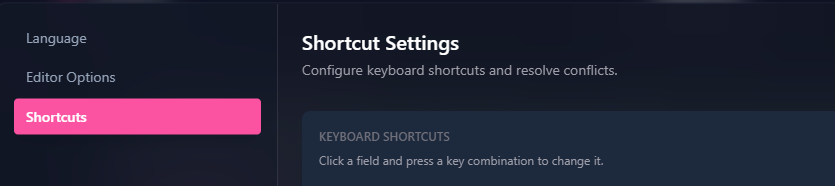
In the left-side menu, click Shortcuts.
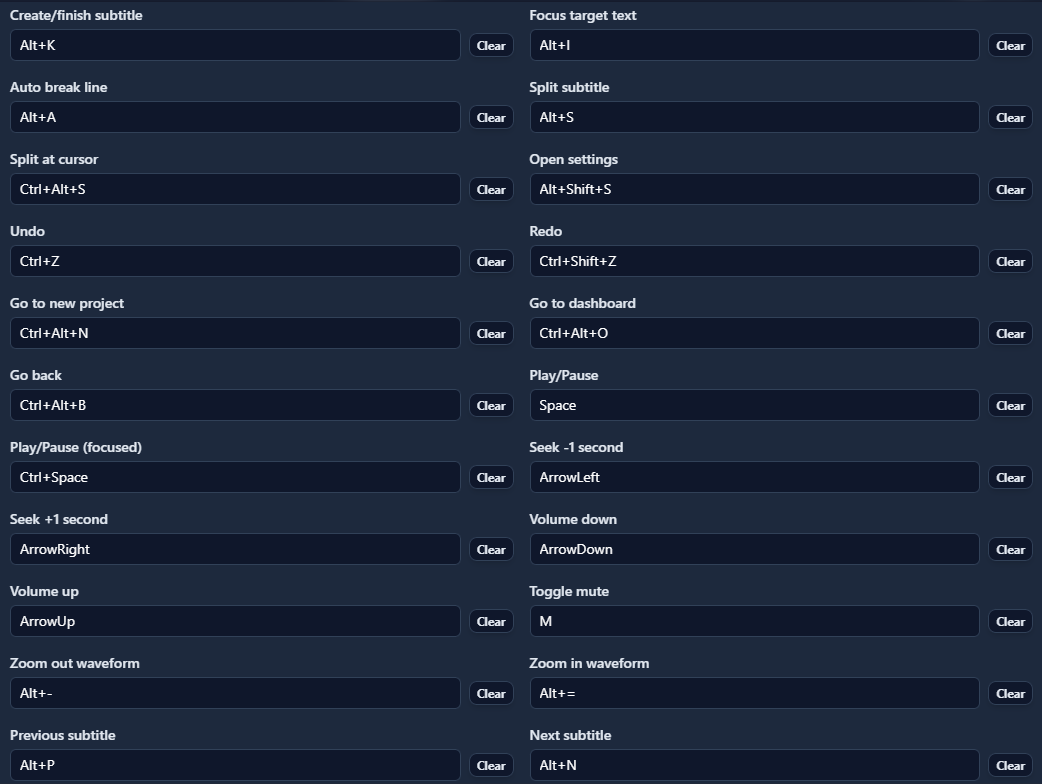
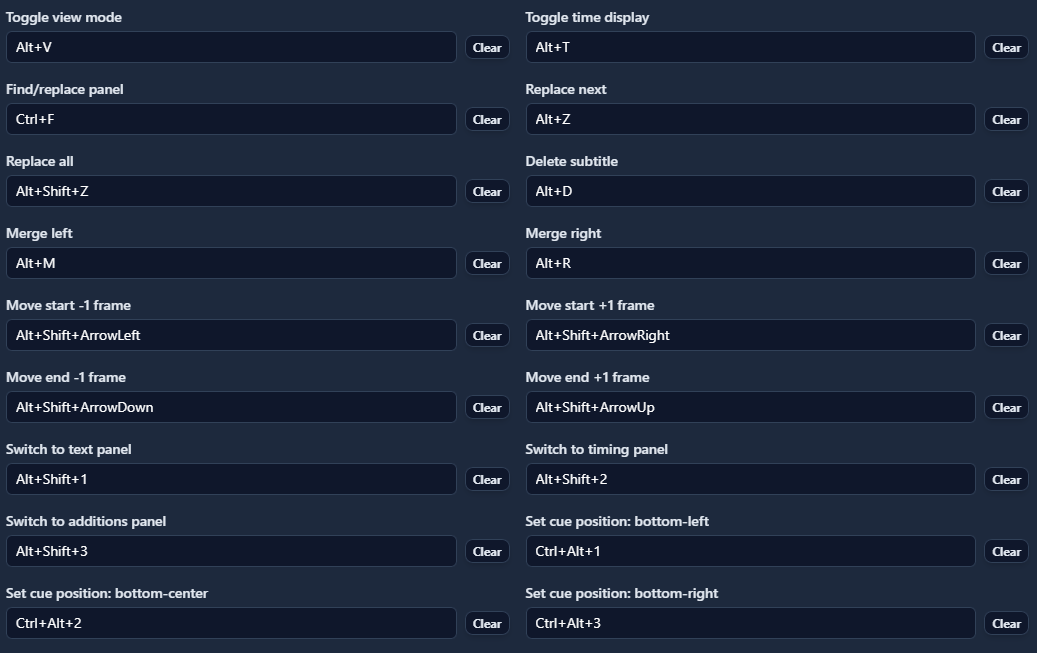
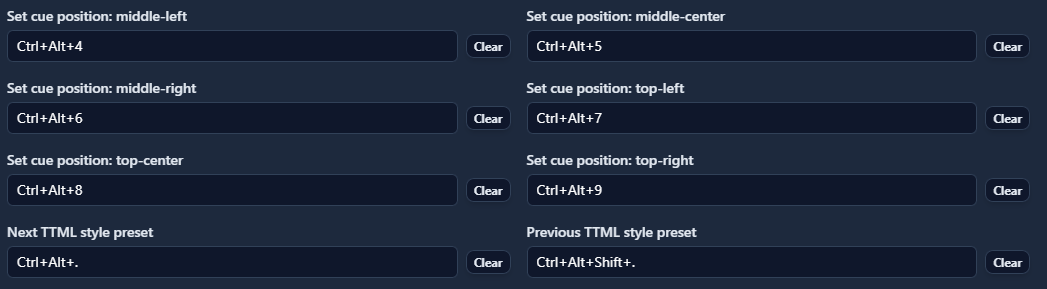
Adjust shortcuts as needed and click OK.
How to Choose Safe Shortcuts Without Browser Conflicts
Because Sublandia Editor works inside a browser, some keyboard combinations are already reserved by browsers.
Avoid assigning shortcuts that trigger browser actions instead of editor actions.
Browser Shortcuts to Avoid
Common Browser Shortcuts Already Reserved
- Ctrl + T → Open new tab
- Ctrl + W → Close tab
- Ctrl + R → Refresh page
- Ctrl + L → Focus address bar
- Ctrl + D → Bookmark page
- Ctrl + F → Browser search
- Ctrl + N → New browser window
- Ctrl + Shift + T → Reopen closed tab
- Alt + Left Arrow → Back page
- Alt + Right Arrow → Forward page
- Ctrl + Tab → Switch tabs
These combinations should generally be avoided in Sublandia Editor.
Recommended Shortcut Strategy for Sublandia Editor
Use combinations less commonly reserved by browsers:
Alt + K
Alt + M
Ctrl + Alt + letter
Shift + Alt + letter
These are usually safer for subtitle editing commands.
Good Shortcut Design Tips
Choose shortcuts based on editing frequency:
- frequently used actions = easiest shortcuts
- complex actions = longer combinations
Example:
- Split subtitle → easy shortcut
- Merge subtitle → easy shortcut
- Move subtitle timing → easy shortcut
- Validation tools → secondary shortcut
Tips
Always test new shortcuts immediately after saving.
If a shortcut triggers browser behavior instead of editor behavior:
- choose another combination
- avoid browser-reserved keys
- prefer Alt-based combinations
Notes
Shortcut behavior may differ slightly depending on:
- Chrome
- Firefox
- Edge
- operating system (Windows / Mac / Linux)
Some browser extensions can also intercept shortcuts.
 FAQ
FAQ
Where do I change keyboard shortcuts in Sublandia Editor?
Open Settings, select Shortcuts, and configure shortcut combinations.
Why do some shortcuts not work in Sublandia Editor?
Some shortcuts conflict with browser keyboard commands.
Which shortcuts should I avoid in browser-based subtitle editing?
Avoid Ctrl+T, Ctrl+W, Ctrl+R, Ctrl+L, Ctrl+F and similar browser shortcuts.
Which shortcuts are safest for subtitle editing?
Alt-based and Ctrl+Alt combinations are usually safest.
Can I create custom shortcuts for subtitle timing?
Yes. Timing, split, merge, and navigation shortcuts can be customized.
Are keyboard shortcuts important for professional subtitle workflows?
Yes. Shortcuts significantly improve editing speed.
Do shortcuts work differently in Chrome and Firefox?
Some reserved shortcuts differ between browsers.
Can browser extensions affect shortcuts?
Yes. Extensions may intercept certain combinations.
Should beginners customize shortcuts immediately?
Beginners can start with default shortcuts and customize later.
What is the best shortcut strategy for subtitle professionals?
Assign the fastest shortcuts to the most frequently used editing actions.
Something on your mind?
Contact us
We are social


