
How to Export Subtitle Files in Sublandia Editor
Designed for creators. Free to use. Ready to scale.
Built by subtitlers. Powered by freedom!
Introduction
Exporting subtitle files in Sublandia Editor allows you to download subtitles in multiple professional formats such as SRT, TTML, DFXP, WebVTT, and ASS. Before export, the editor automatically checks subtitle quality through Export Validation.
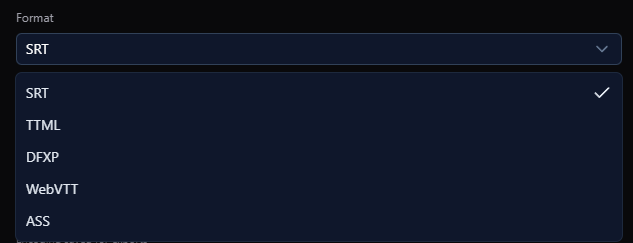
 Steps to Export Subtitle Files
1. Open Export Validation
In the top-right menu, click Export.
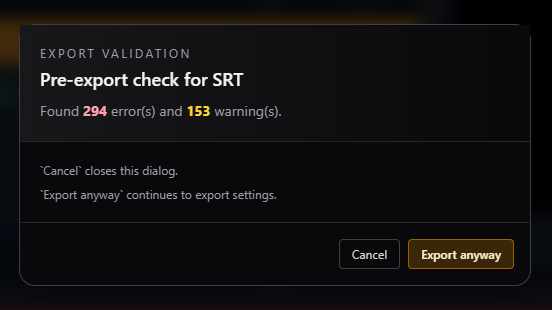
An Export Validation window opens and displays:
- subtitle errors
- warnings
- validation messages
Choose one of the following options:
- Cancel return and fix subtitle issues
- Export Anyway export even if warnings exist
- Export continue if no errors are present

2. Configure Export Settings
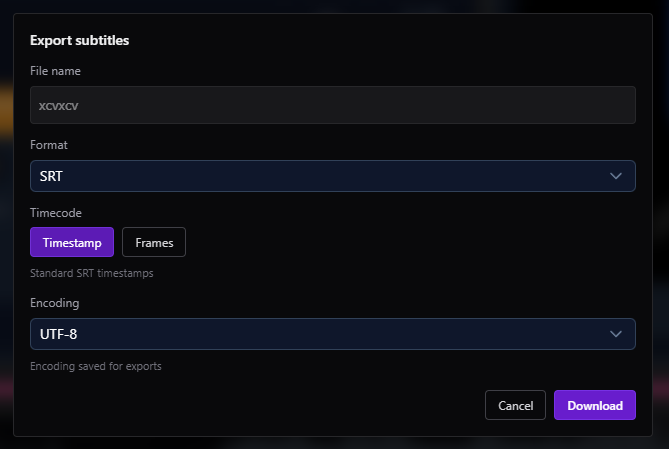
The Export Subtitles window opens.
Enter:
- File Name
- Subtitle Format (SRT, TTML, DFXP, WebVTT, ASS)
- Timestamps or Frames
- Encoding
Click Download to export the subtitle file.
Note
If you choose TTML or DFXP, an additional settings window appears for advanced export configuration.
 FAQ
FAQ
How do I export subtitle files in Sublandia Editor?
Click Export, review validation results, choose export settings, and download the subtitle file.
Which subtitle formats can be exported from Sublandia Editor?
Supported export formats include SRT, TTML, DFXP, WebVTT, and ASS.
What is Export Validation in Sublandia Editor?
Export Validation checks subtitles for timing issues, formatting problems, and warnings before export.
Can I export subtitles even if validation shows warnings?
Yes. Use Export Anyway to continue exporting.
Should subtitle errors be fixed before export?
Yes. Fixing errors ensures cleaner subtitle delivery and professional output.
What encoding should I choose when exporting subtitles?
UTF-8 is recommended for maximum compatibility.
What is the difference between timestamps and frames during export?
Timestamps export subtitle timing in timecode format, while Frames export subtitle timing aligned to frame numbers.
Why do TTML and DFXP exports show extra settings?
These formats support advanced subtitle metadata and delivery options.
Is Sublandia Editor suitable for broadcast subtitle export?
Yes. It supports professional subtitle delivery formats and validation workflows.
Can exported subtitle files be reopened later?
Yes. Exported files can be imported again or used in other subtitle workflows.
Something on your mind?
Contact us
We are social


